Key Competences
Competence in linguistic communication
It involves interacting coherently in different settings, whether orally, in writing or through multiple modes, mobilising knowledge to understand, interpret and produce messages critically and effectively.
Plurilingual competence
It involves using different languages appropriately and effectively for learning and communication, drawing on one's own experience to transfer knowledge between languages and to mediate between them.
Competence in mathematics and in science, technology and engineering
It involves using mathematical and scientific thinking to solve problems, together with technological and engineering methods to transform the environment responsibly and sustainably.
Digital competence
It involves the safe, healthy, sustainable, critical and responsible use of digital technologies for learning, work and social participation, including computational thinking and programming.
Personal, social and learning-to-learn competence
It is the ability to reflect on oneself, self-manage, collaborate with others, remain resilient and manage learning throughout life, coping with uncertainty and complexity.
Citizenship competence
It is the ability to exercise responsible citizenship and take part in social and civic life, based on an understanding of social, economic and political concepts and on a commitment to sustainability and human rights.
Entrepreneurial competence
It involves identifying needs and opportunities and turning ideas into solutions and projects that create value (social, cultural or economic), developing creativity, initiative and planning.
Competence in cultural awareness and expression
It involves understanding and respecting how ideas and emotions are expressed creatively in different cultures and art forms, and developing the expression of one's own ideas in a diverse world.
Operational Descriptors
CC2
Analyses the relationships between societies and their environment, and promotes responsible consumption habits and sustainable lifestyles.
CC3
Reflects on ethical issues and human rights and participates in community activities, while becoming aware of the importance of citizen participation, cooperation, social cohesion and respect for diversity for democratic coexistence.
CD1
Performs advanced searches according to criteria of validity, quality, currency and reliability, selecting, organising and interpreting the information obtained to turn it into knowledge.
CD2
Manages their digital identity and interacts and communicates respectfully and competently on different platforms and social networks.
CD3
Creates, integrates and reworks digital content in different formats, respecting the intellectual property and copyright of the content they reuse.
CD5
Develops simple software applications and creative, sustainable technological solutions to solve specific problems or respond to proposed challenges.
CE1
Analyses and assesses challenges and opportunities in the immediate and global environment, and presents innovative and sustainable ideas and solutions, applying the principles of project management and design thinking, to create value for others.
CE2
Mobilises personal, social and cultural resources, including financial ones, to carry out ideas and projects, and to make ethical and responsible economic and financial decisions, considering the social and environmental impact.
STEM1
Uses inductive and deductive methods typical of mathematical reasoning in familiar situations, and selects and applies different strategies to solve problems.
STEM4
Interprets and transmits scientific information in different formats, using precise language and mathematical and scientific tools.
CE3
Develops the personal qualities needed for entrepreneurship, such as creativity, perseverance, self-confidence and a critical spirit.
CPSAA4
Carries out proposed activities proactively and perseveringly, accepting mistakes as part of the learning process and adapting to difficulties.
CCL1
Expresses himself orally and in writing with clarity, coherence and appropriateness, using the register and discourse conventions appropriate to each context.
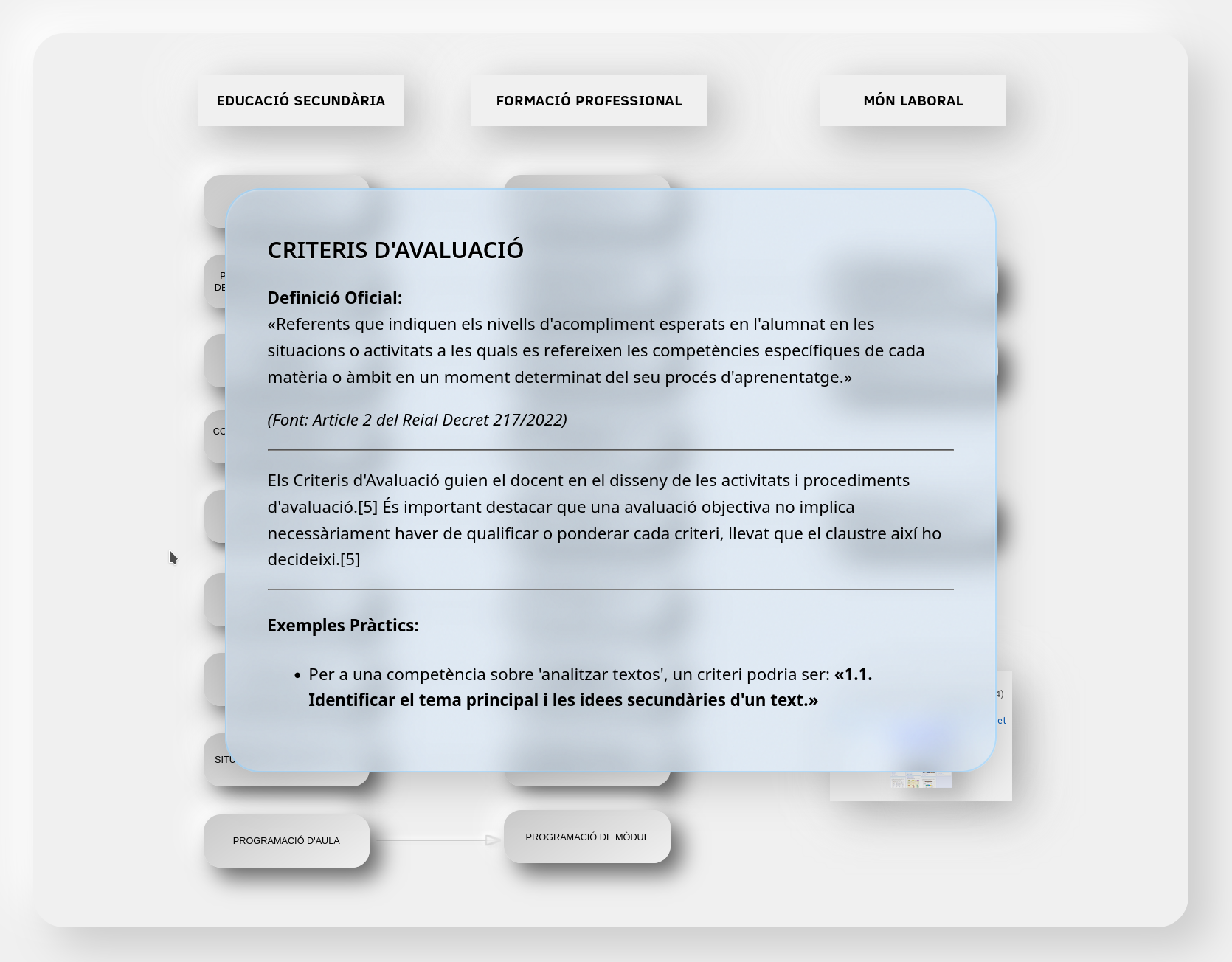
Specific Competences
1. Word processors
Use word processors competently and autonomously, identifying and taking advantage of the functionalities they offer for the generation of documents.
2. Multimedia presentations
Use, confidently and autonomously, applications for the creation of multimedia presentations, both slide-based and online.
3. Spreadsheets
Use, in a guided way, spreadsheets for the automation of calculations and the generation of diagrams, beginning with the referencing of cells and the auxiliary functions.
Assessment Criteria
Criterion 1.1
Use the keyboard correctly, making independent use of the different groups of keys.
Criterion 1.2
Define different paragraph styles, using them for index generation.
Criterion 1.3
Create tables and edit their layout and format properties.
Criterion 1.4
Rate and use the comment insertion tool for personal and group work.
Criterion 1.5
Spell and grammar check the text produced using the appropriate processor tool.
Criterion 1.6
Faithfully reproduce texts, both in terms of content and format.
Criterion 1.7
Configure document printing.
Criterion 2.1
Design and develop multimedia presentations based on slides, making reasonable use of their functionalities.
Criterion 2.2
Design and develop multimedia presentations including a reasonable amount of content and elements in accordance with the use as a guide in exhibitions.
Criterion 2.3
Rehearse oral presentations using the appropriate functionalities of the application.
Criterion 3.1
Appropriately reference variables and constants in the definition of operations and functions.
Criterion 3.2
Design and prepare tables, with an appropriate format, for the automation of calculations that solve simple problems.
Criterion 3.3
Generate diagrams from simple tables, configuring their elements correctly.
Term Schedule
110 total sessions (3/week)
This program is designed to be flexible and adapt to the rhythm of the group, accommodating deepening or reinforcement activities according to needs. There is no hour limit: the goal is to have all the content in case it is needed.
UP1: Welcome and digital literacy
(10 sessions)
We familiarize ourselves with the work environment, the devices and the basic rules of security and digital coexistence.
- Setting up the work environment: user accounts, folders and file management.
- The QWERTY keyboard: home position, finger scrolling and key groups.
- Basic key combinations to avoid using the mouse.
- Healthy habits of ergonomics and use of screen time.
UP2: Typing
(5-8 divided sessions)
We learn to type with all fingers without looking at the keyboard, improving speed and accuracy.
- Challenge 1: Learn to use all your fingers without looking at the keyboard.
- Challenge 2: Type each key with the corresponding finger.
- Challenge 3: Type fluently without mistakes.
- Challenge 4: Accuracy: keep the percentage of errors below 4%.
- Main platform: Cursomeca (cursomeca.com) with 27 guided lessons. Alternative in Catalan: MecaGratis (mecagratis.com).
- Other resources: TypingClub, Ratatype, Velocidactil, Artypist.
- Free applications for Linux: TuxTyping i KTouch.
Pedagogical justification
Touch typing develops muscle memory and hand-eye coordination, and facilitates note-taking, report creation and online exams. Despite the advancement of AI and speech recognition, typing quickly and without errors remains a core professional competency that frees up cognitive load for higher-level tasks.
UP3: Text processors
(35 sessions)
We learn how to create and edit professional documents, mastering formatting, tables and review tools.
- Final Product 1: Elaboration of a curriculum vitae with styles, tables and indexes.
- Final Product 2: Writing an academic report with cover, table of contents and bibliography.
- Practicals: Text reproduction, spelling check and print settings.
UP4: Generation of Images with Artificial Intelligence
(15 sessions)
We explore the creative possibilities of image generative AI and reflect on the ethics and impact of these tools.
- Introduction to Generative AI: what it is, how it works (diffusion models).
- The art of prompting: descriptors, styles, lighting, composition.
- Image generation tools: Gemini (Nano Banana 2), ChatGPT (GPT Image 2.0), Leonardo AI.
- Ethics and Copyright: reflection on the responsible use of AI in artistic creation.
- Final Product: Creation of a themed illustration or poster with an AI tool, accompanied by a memo explaining the process and the prompt used.
UP5: How to use the AI: the prompts
(10 sessions)
We learn how to communicate effectively with generative AI tools by writing rich and accurate prompts.
- What is a prompt? Difference between a simple instruction and a rich and intricate one.
- Structure of a good prompt: context, role, format, constraints.
- Iteration: refine the prompt to improve results.
- Practice: Create prompts for different types of tasks (text, image, video).
- Final Product: Collection of 5 prompts for different purposes, with the results obtained and a reflection on the process.
UP6: Multimedia presentations with slides
(25 sessions)
We design attractive and effective presentations, learning how to use them as a guide for oral presentations.
- Final Product 1: Presentation on a topic of interest with templates, transitions and animations.
- Final Product 2: Essay and oral presentation using the essay tool and presentation parameters.
- Practicals: Color theory, master slide design and content streamlining.
UP7: Spreadsheets
(25 sessions)
We start automating calculations, referencing cells and generating diagrams. Tool to decide in class (LibreOffice Calc, Google Sheets or similar).
- Final Product 1: Creation of a personal budget with formulas and conditional formatting.
- Final Product 2: Data analysis and generation of column, bar and sector diagrams.
- Practicals: Using the function assistant, sorting and automatic filters.
UP8: Photography and Video Workshop
(20 sessions)
We learn the basic techniques of photography and video: framing, composition, types of shots, lighting and sound.
- Audiovisual language: types of shots (close-up, general shot, etc.), camera movements.
- Photo composition: rule of thirds, lines, perspective.
- Lighting and sound: basic concepts for recording.
- Practicals: Recording a short video with a mobile phone or camera, applying the techniques learned.
- Basic edition: introduction to video editing with simple software (CapCut, etc.).
UP9: Video Generation with Artificial Intelligence
(15 sessions)
We explore the creative possibilities of generative video AI and reflect on the impact on the audiovisual industry.
- Video Generation Models: Pika, Luma Dream Machine, Hailuo, Google Vids.
- Prompting for video: scene description, camera movement, duration.
- Audiovisual language: apply the knowledge of the photography and video workshop.
- Final Product: Creating a short video (5-10 seconds) with an AI tool, from a detailed prompt, and editing it with a simple program.
UP10: AIs for video (optional task to raise grade)
(10 sessions, optional)
Complex task where students have to find an AI tool to work with videos, generate or summarize a video, share the prompt used and link to the AI, and publish it correctly.
- Objective: Demonstrate maturity in the use of AI tools and in formal communication (email).
- Multilevel Rubric: Score from 4 to 10 based on criteria such as getting the video, quality, rich prompt, indicating AI, publication and maturity.
- Formal penalties: Email without subject (4), email without greeting (-1 on grade).
- Delivery: Email submission with video link, prompt and AI link.
UP11: Your mind against tricks
(2 sessions)
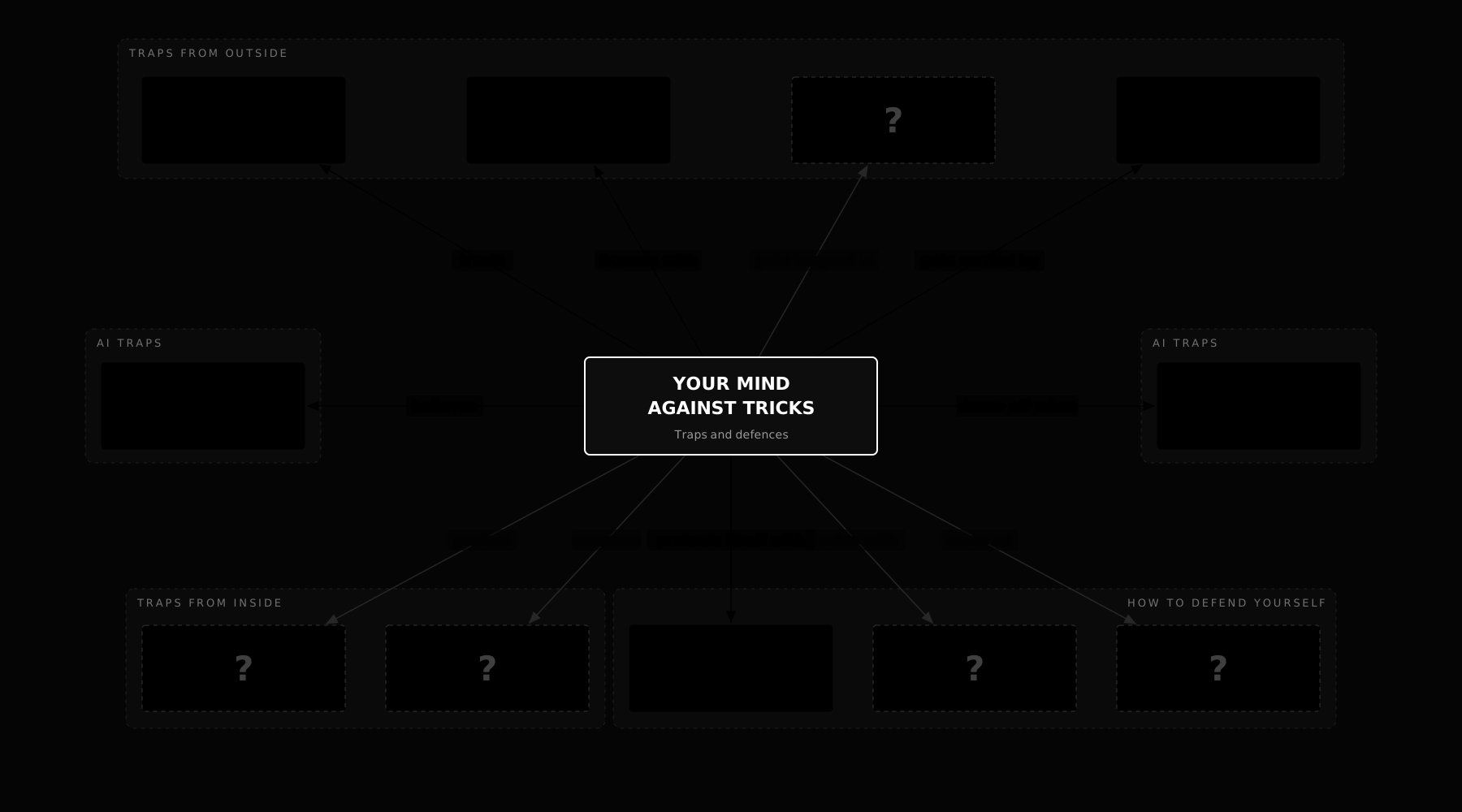
Interactive concept map with the eight traps that can fool our mind (celebrities, rushing, the small print, what everyone says, AI making things up…) and four steps to avoid falling for them: Stop · Ask · Cross-check · Question yourself. Each box has an everyday example and how to protect yourself, and at the end there is a test with situations.
Basic Knowledge
A. Functionalities and utilities common to various applications
- QWERTY typing keyboard. History and advantages. Initial position and correct displacement of the fingers.
- Groups of keys: writing, scrolling, functions, control, numeric and special. utilities
- Key combinations to avoid using the mouse.
- Basic utilities: copy, paste, format clone, find and replace, toolbar customization, etc.
B. Word processors
- Page format: size, orientation, margins and columns. Edition and use. Viewing the rules.
- Page and section breaks. utility
- Character format: size, font, and various effects (bold, italic, underline, strikethrough, subscript, superscript, color and highlight, etc.). Edition and use.
- Special characters. Formatting marks such as line breaks.
- Paragraph Formatting: Indentation, Spacing, Line Spacing, Alignment, Borders, and Shading Area.
- Peaks and numbering.
- Paragraph styles. Using standard styles and creating new ones. Utilization for the generation of automatic indexes.
- tables Union of cells. Editing properties. legends
- Image properties: alignment, fit, and borders. legends
- Header and footer. Page number and other appropriate fields.
- comments Insert, edit, reply, delete, close threads, etc. Identification of the user making the comment.
- Spelling and grammar check. Establishment of the review language. Configuration to ignore and correct the same errors. Incorporation of terms in the dictionary.
- Tables of contents and images.
- Print settings: selection of pages, number of copies, sides, orientation and order.
- Virtual printers.
- Various functionalities such as word count.
C. Slide-based multimedia presentations
- Use of multimedia presentations as a support tool in exhibitions.
- Design templates. Use, editing and creation.
- Background color of the slides depending on the expected duration of the exposure.
- Slide size and orientation. Projector sizing available.
- Slide formats. Master slide Utility of each element distribution model.
- Duplication of slides. Usefulness in design and presentation.
- Features of the drawing toolbar.
- Organization, investment and grouping of drawings and images.
- Transition between slides. Interactions of elements.
- Combination of different functionalities of the application. Reasonable and consistent use.
- Rationalization of the content in the presentations, using it as a guide in the exhibitions.
- Presentation parameters and test tool.
- Introduction to color theory to obtain appropriate contrasts.
D. Online multimedia presentations
- Free online applications for generating slide-based presentations. Exploration of possibilities.
- Free online applications for generating non-slide-based presentations. Exploration of possibilities and use.
- Platforms for sharing multimedia presentations. exploration
E. Spreadsheets
- Rows and columns. Insertion and freezing.
- Cell formatting: alignment, borders, and backgrounds.
- Number format Appropriate selection of the category.
- Basic operations: addition, subtraction, multiplication and division.
- Reference of cells of the same sheet and of different ones.
- Conditional Formatting
- Introduction to the function assistant. Basic logical, mathematical, statistical and text functions.
- Copying formulas by dragging the fill handle. Fixing cells that contain constant values in the formula.
- Sorting of data and automatic filters.
- Automatic generation of column, bar and pie charts. Axis scale and legend.
References and extras
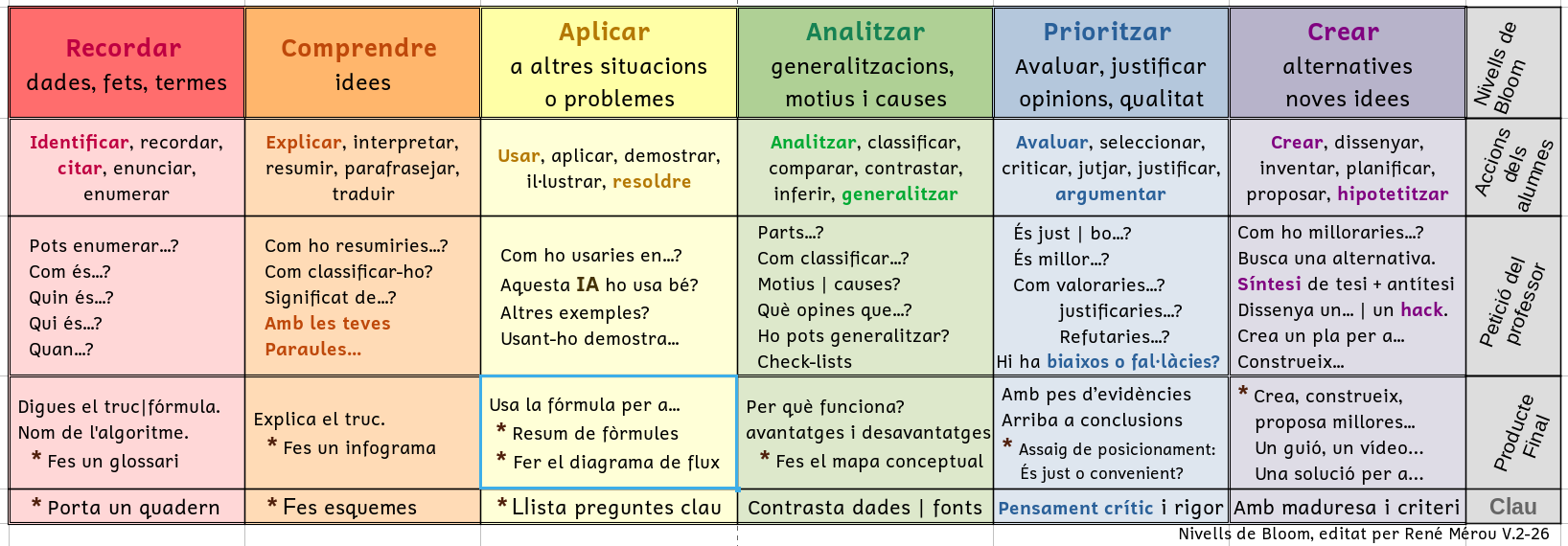
Bloom's Taxonomy Table
A visual guide to learn how to study better. Instead of just memorising, discover how to start by analysing and prioritising information to make your study more effective.
Useful for students and families to understand how we learn and how we are assessed.
Legal and Curricular Foundations
Legal foundations in chronological order:
- UNESCO (1996) - "Learning: The Treasure Within" report.
- OECD (1999) - Launches PISA and DeSeCo.
- European Reference Framework of Key Competences for Lifelong Learning (2006) - Adopted in 2006.
- LOE (2006) - Introduces basic competences.
- LOMCE (2013) - Key competences.
- LOMLOE (2020) - Amends the LOE and mandates criterion-based assessment.
- Balearic Islands - BOIB (2022) - Implements LOMLOE in 2022-23 (odd years).
- Balearic Islands - BOIB (2025) - Regulation and curriculum of compulsory secondary education (ESO).
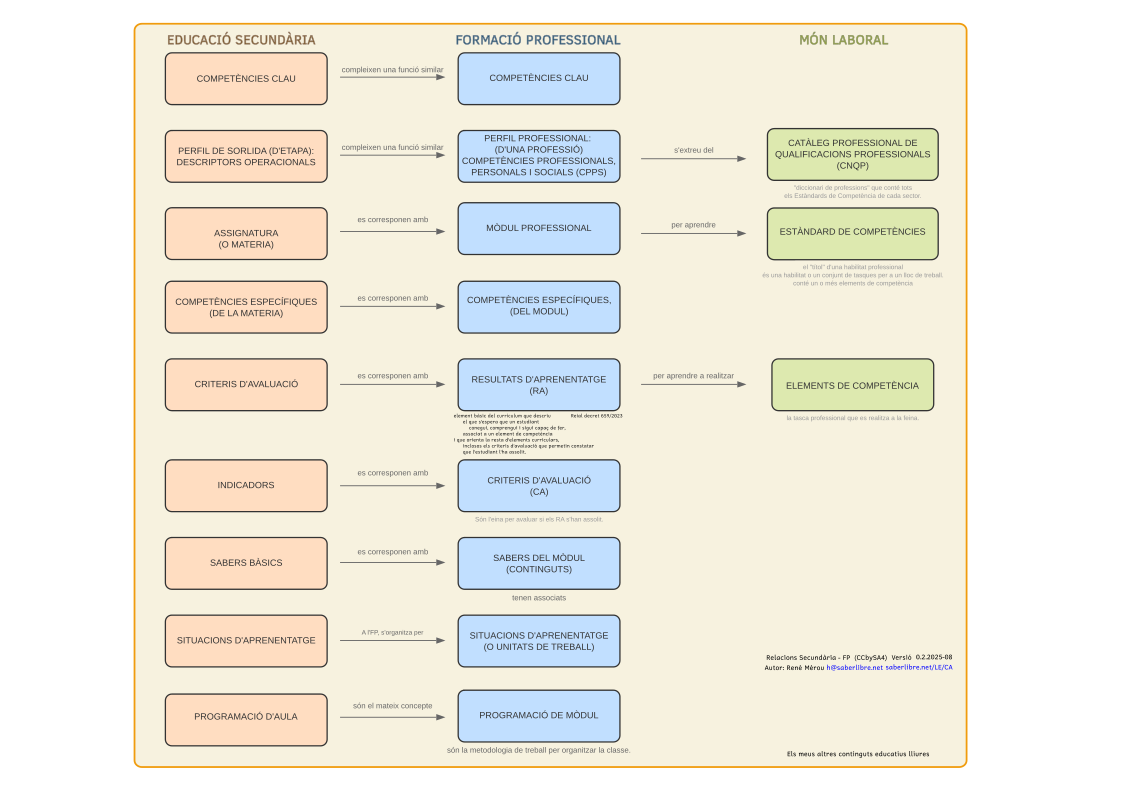
FP and Secondary Education Terminology
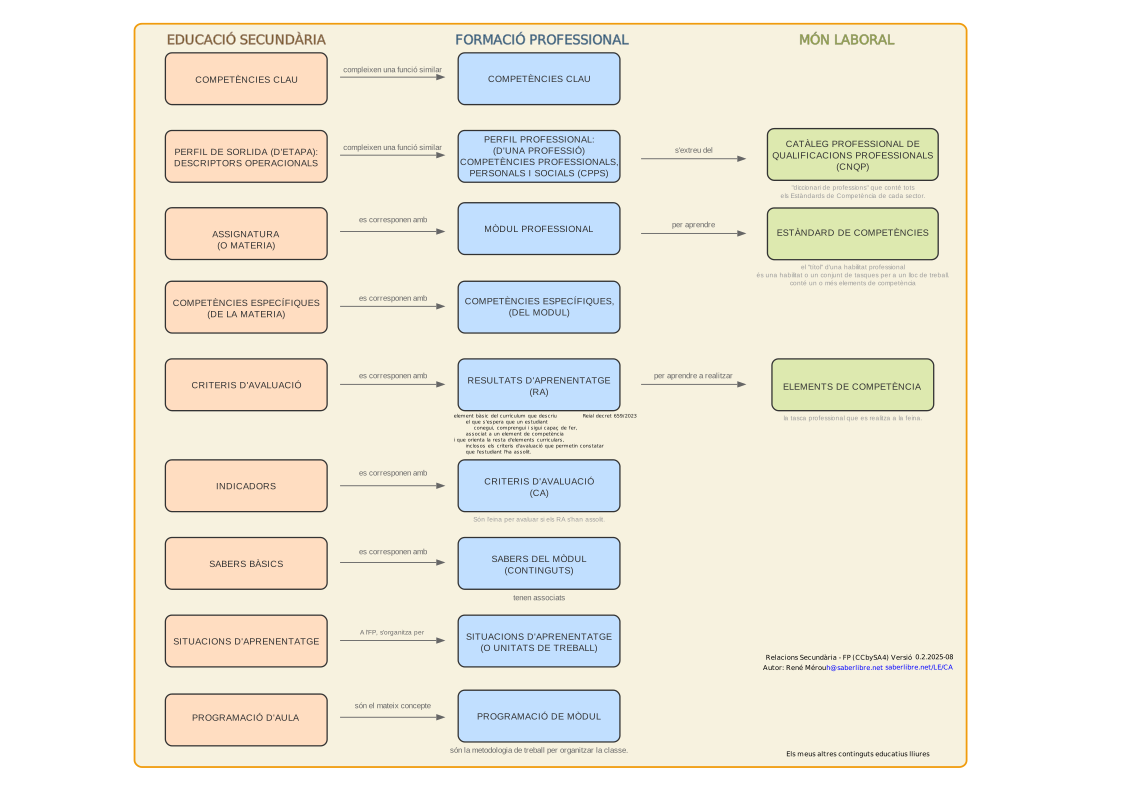
My interactive conceptual hypermap that clarifies and connects the terminology used in Vocational Training (FP) and Secondary Education.